Programmatically updating Canvas with canvasapi

Being efficient behind the scenes

Johnson Phosavanh

Discipline of Business Analytics
The University of Sydney

Setting up canvasapi

Assumptions

  • You haven’t used an API before.
  • You have a working knowledge of Python.
  • You have an installation of Python.
  • You have access to the Canvas course (teacher or higher).

Installing canvasapi

There is an API for Canvas; however for people unfamiliar with APIs, you can access it through Python with the canvasapi module.

This can be installed using

pip install canvasapi

Using canvasapi

Logging in

  1. Request an access token.
  2. Get your course code.
    • Go on Canvas and select your course.
    • The course code is the last field in the url: https://canvas.sydney.edu.au/courses/XXXXX.

The basics

from canvasapi import Canvas

API_URL = 'https://canvas.sydney.edu.au'
API_KEY = '' # Your access token here as a string

# Initialize a Canvas object
canvas = Canvas(API_URL, API_KEY)

# Get your course
course_id = # Your course code here as an int
course = canvas.get_course(course_id)

# Get your students
students = course.get_users(enrollment_type=['student'])

Accessing student information

You can access student information such as:

  • Unique identifiers (USyd Student ID, Canvas ID, USyd Unikey)
  • Student names
  • Student emails
for student in range(len(list(students))):
    # USYD SID
    sid = students[student].sis_user_id

    # Canvas name
    name = students[student].name

    # Canvas ID
    cid = students[student].id

    # USYD unikey
    email = students[student].login_id

    # USYD email
    unikey = students[student].email

Accessing assignments

Getting the assignment code

for a in course.get_assignments():
    print(a)
Assignment 1 (123450)
Assignment 2 (123451)
Assignment 3 (123452)

This is the same as looking at the url of an assignment: https://canvas.sydney.edu.au/courses/UNIT_CODE/assignments/XXXXXX

Getting the assignment

You can access assignments through the API.

# Get the assignment
assignment = course.get_assignment(123450)
print(assignment)
Assignment 1 (123450)

You can also update assignment information if needed (no walkthrough here, the UI is easier to use).

Accessing student submissions

Querying data

You can access information on student submissions such as:

  • Marks
  • Submission times
  • Number of submissions/attempts
  • Missing submissions
# Get the assignment using canvasid
submission = assignment.get_submission(cid)
# Get mark
mark = submission.score
# Get lateness
lateness = submission.seconds_late
# Number of submissions
submissions = sub.attempt
# If submission missing
missing = sub.missing

Accessing student submissions

Editing the data

You can update marks, add comments and upload feedback files to submissions.

# Mark changes
submission.edit(submission={'posted_grade': new_mark})
# Make a text comment
submission.edit(comment={'text_comment': comment, 'attempt': submission.attempt})
# Upload a feedback file
submission.edit(comment={'file_ids': path_to_file, 'attempt': submission.attempt})
# submission.upload_comment(file=path_to_file) # A little buggy, see below

Note: Feedback files will always be associated with the students first submission. This is a known bug. Mark changes will always be associated with the latest submission.

Simple use cases

External marks and feedback

Background

  • You have marks you need to export from an non-integrated app, e.g., ed, nbgrader, marks in an Excel spreadsheet, etc.
  • You have feedback files in PDFs, Word documents, etc.
  • These need to be sent back to students via Canvas.

External marks and feedback

import pandas as pd

marks_df = pd.DataFrame([[123456780, 95, 'Great work!'],
                         [123456781, 55, 'You need to put in more effort!'],
                         [123456782, 75, 'Keep going!']],
                         columns=['SID', 'mark', 'comment'])
marks_df.set_index('SID', inplace=True)

for student in range(len(list(students))):
    sid = str(students[student].sis_user_id)
    cid = int(students[student].id)

    submission = assignment.get_submission(cid)

    if sid in marks_df.index:
        mark = marks_df.loc[sid, 'mark']
        submission.edit(submission={'posted_grade': mark})

        msg = marks_df.loc[sid, 'comment']
        submission.edit(comment={'text_comment': msg, 
                                 'attempt': submission.attempt})


        submission.edit(comment={'file_ids': f'Assignment1-feedback-{sid}.pdf', 
                                 'attempt': submission.attempt})

Applying late penalties

Background

  • You want to apply late penalties to students, but want to give all students a 5 days extension from the published due-date.

Applying late penalties

import math

max_score = 100

for student in range(len(list(students))):
    sid = str(students[student].sis_user_id)
    cid = int(students[student].id)

    submission = assignment.get_submission(cid)
    mark = submission.score
    lateness = submission.seconds_late

    penalty_multiplier = max((math.ceil(lateness / 3600) - 5), 0)
    penalty = penalty_multiplier * 0.05 * max_score

    submission.edit(submission={'posted_grade': max(0, mark - penalty)})

    msg = f'Late penalty applied: {penalty_multiplier} day(s) late'
    submission.edit(comment={'text_comment': msg, 
                             'attempt': submission.attempt})

Note: Other extensions (academic plans, special considerations) will still need to be accounted for manually in the due-date settings on Canvas, or this can be loaded in through a csv file via pandas and extra logic applied.

Advanced use cases

Updating canvas pages

Demonstration with FFT trackers

Different due-dates for students

Background

  • For students with different due-dates due to disability plans, special considerations, etc.

Guide

from datetime import datetime
### UNTESTED
assignment.create_override(assignment_override={'student_ids': [xyz], # Use Canvas IDs here
                                                'due_at': datetime(2025, 6, 30, 23, 59),
                                                'unlock_at': datetime(2025, 6, 30, 23, 59),
                                                'lock_at': datetime(2025, 6, 30, 23, 59)})

Bypass simple extensions - penalties 1/2

Background

  • You want to apply late penalties to students, but want to give all students a 5 days extension from the published due-date.
  • You remove the lateness if they are less than 5 days late. but subtract 5 days for anyone submitting after the due-date.

Guide

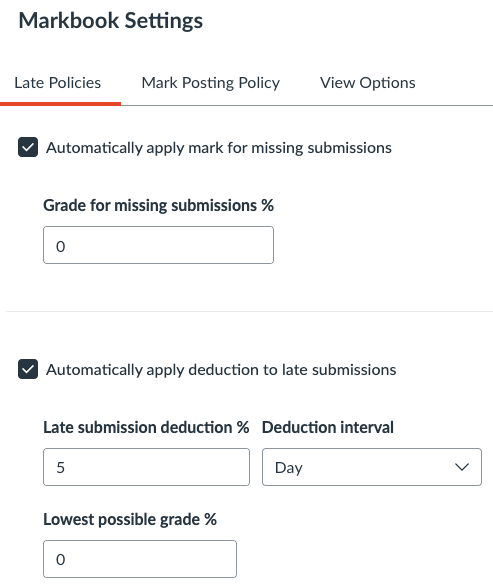
  • Update your markbook settings to the policy of 5% deduction a day (see right).
  • Remember to set the closing date for your assignment.
  • After all submissions are in, you can change the lateness of a submission using the following code:
from datetime import datetime
### UNTESTED
course.edit_late_policy(late_policy={'late_submission_deduction_enabled': True,
                                     'late_submission_deduction': 5,
                                     'late_submission_interval': 'day', 
                                     'late_submission_minimum_percent_enabled': True,
                                     'late_submission_minimum_percent': 0})

Bypass simple extensions - penalties 2/2

# grace period
grace = 60 * 5

for student in trange(len(list(students))):
    cid = int(students[student].id)
    sub = assignment.get_submission(cid)
    
    late = sub.late
    days_late = (sub.seconds_late - grace) / 60 / 60 / 24

    if (days_late <= 5) and late:
        sub.edit(submission={'late_policy_status': 'none'})
    elif late and (days_late > 5):
        sub.edit(submission={'late_policy_status': 'late', 
                             'seconds_late_override': sub.seconds_late - (5 * 24 * 60 * 60)})
    if sub.missing:
        sub.edit(submission={'late_policy_status': 'missing'})

Watermarking assignments

Background

  • Assignment sheets can be watermarked with student information so they cannot be posted online.
  • PDFs can be converted to images making it harder for students to copy and paste text into online search engines.

Watermarking assignments 1/6

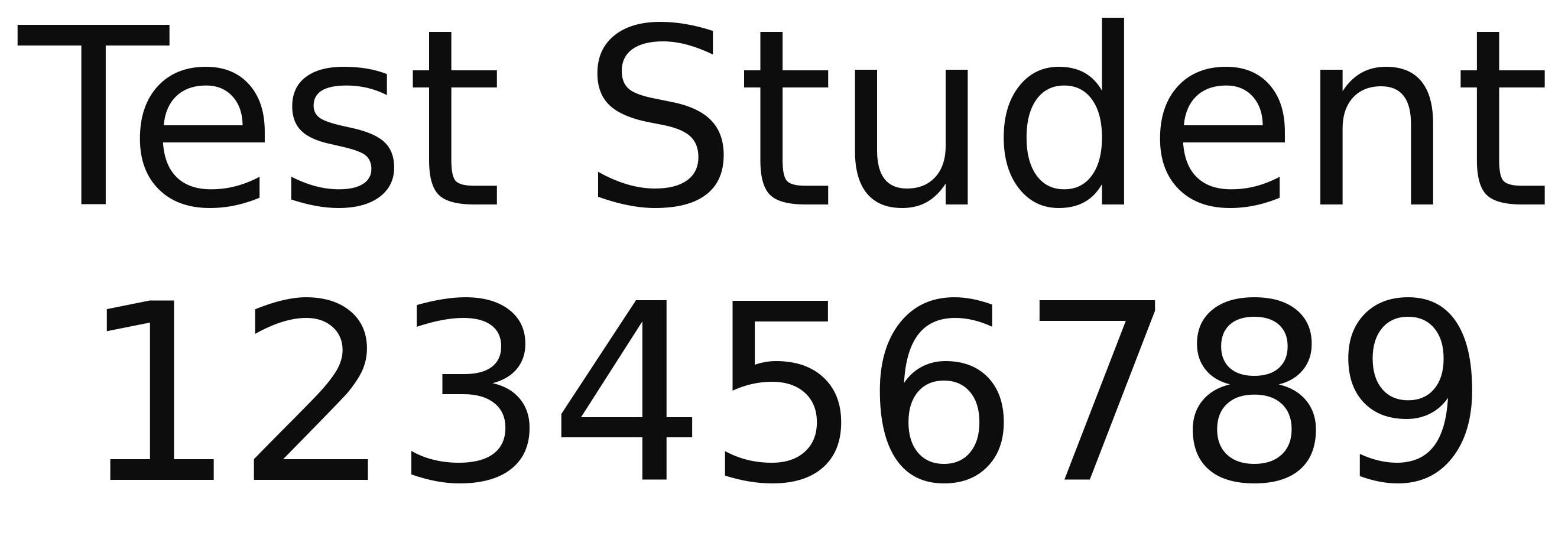
Creating watermark text

import matplotlib.pyplot as plt

def gen_watermark(sid, name, path='temp/watermark.png', show_result=False):
    fig = plt.figure(figsize=(3, 2))
    plt.xlim(0, 6)
    plt.ylim(0, 4)
    plt.text(x=3, y=2, s=f'{name}\n{sid}', fontsize=100, fontweight='normal', alpha=0.95, horizontalalignment='center', verticalalignment='center')
    plt.axis('off')
    plt.savefig(path, bbox_inches='tight', dpi=300)
    if not show_result:
        plt.close(fig)
Watermarking assignments 2/6

Watermarking assignments

from PIL import Image

def create_watermark(main, final_image_path, watermark):
    mark = Image.open(watermark)
    mark = mark.rotate(0, expand=1)
    mark.putalpha(20)
    mark_width, mark_height = mark.size
    main_width, main_height = main.size
    aspect_ratio = mark_width / mark_height
    new_mark_width = main_width * 0.1

    mark.thumbnail((new_mark_width, new_mark_width / aspect_ratio), Image.Resampling.LANCZOS)
    tmp_img = Image.new('RGBA', main.size)
    for i in range(0, tmp_img.size[0], mark.size[0]):
        for j in range(0, tmp_img.size[1], mark.size[1]):
            main.paste(mark, (i, j), mark)
    main.save(final_image_path, dpi=(300, 300))

Watermarking assignments 2/6

Watermarking assignments

Watermarking assignments 3/6

Setup

from pdf2image import convert_from_path
import contextlib, os
import pickle

## Pages ot skip at the front: cover sheets etc.
skip_pages = 1
## The following should be set for all assignments
unit = 'UNIT-NAME'
sem = '2025 Semester 1'
number = 2 # assignment number
res = 5 # resolution (this stops some of the OCRs)

# File name is assumed to be in the format 'assignment_name.pdf' and in the `assignments` subdirectory
assignment_name = f'Assignment{number}'
assignment_file = f'assignments/{assignment_name}.pdf'

# The rest of the code setup the assignment for later
## Loads assignment file into memory
pil_image_lst = convert_from_path(assignment_file)
n_pages = len(pil_image_lst)

# File to keep track of who has received the file
if os.path.exists(f'release-notes/{assignment_name}.pkl'):
    with open(f'release-notes/{assignment_name}.pkl', 'rb') as handle:
        released = pickle.load(handle)
else:
    released = set()

Watermarking assignments 4/6

Using the API

# Frontmatter
for page_no in range(skip_pages):
    pil_image_lst[page_no].save(f'temp/release/{page_no}.png')

release_assignment = course.get_assignment(ASSIGNMENT_NO)
release_assignment.edit(assignment={'post_manually': False})
    
for student in trange(len(list(students))):
    sid = int(students[student].sis_user_id)
    name = students[student].name
    cid = int(students[student].id)

    # Check if assignment released
    if sid in released:
        continue
    else:
        released.add(sid)

    # Student specific watermark
    gen_watermark(sid, name, path='temp/watermark.png', show_result=False)
    
    # Add watermark
    for page_no in range(skip_pages, n_pages):
        assignment_page = pil_image_lst[page_no].copy()
        create_watermark(assignment_page, f'temp/release/{page_no}.png', 'temp/watermark.png')
        
    # Recompile as pdf
    out = f'temp/release/{assignment_name}-{sid}.pdf'
    images = [Image.open(f'temp/release/{page_no}.png') for page_no in range(n_pages)]
    images[0].save(out, 'PDF', resolution=res, save_all=True, append_images=images[1:])
    
    # Release assignment
    sub = release_assignment.get_submission(cid)
    sub.upload_comment(file=out)
    
    # Delete individual watermarked pages
    with contextlib.suppress(FileNotFoundError):
        for page_no in range(skip_pages, n_pages):
            os.remove(f'temp/release/{page_no}.png')

        os.remove(out)
        
# Delete frontmatter
for page_no in range(skip_pages):
    os.remove(f'temp/release/{page_no}.png')

# Save released list
with open(f'release-notes/{assignment_name}.pkl', 'wb') as handle:
    pickle.dump(released, handle, protocol=pickle.HIGHEST_PROTOCOL)

Watermarking assignments 5/6

Tips

  • Create an empty assignment on Canvas first.
    • Set the submission type to None.
  • You can do the above using the API, but it’s easier to set this up on Canvas.
  • Remember to ‘Release marks’ after you have run the script so students see their assignment sheet.
  • Make sure you set the assignment to post automatically so you don’t forget to ‘release marks’ every time the script is run.
  • If you have issues and need to rerun your script, you need to delete the pickle file that records which students have received the file.

Watermarking assignments 6/6

Information released to students

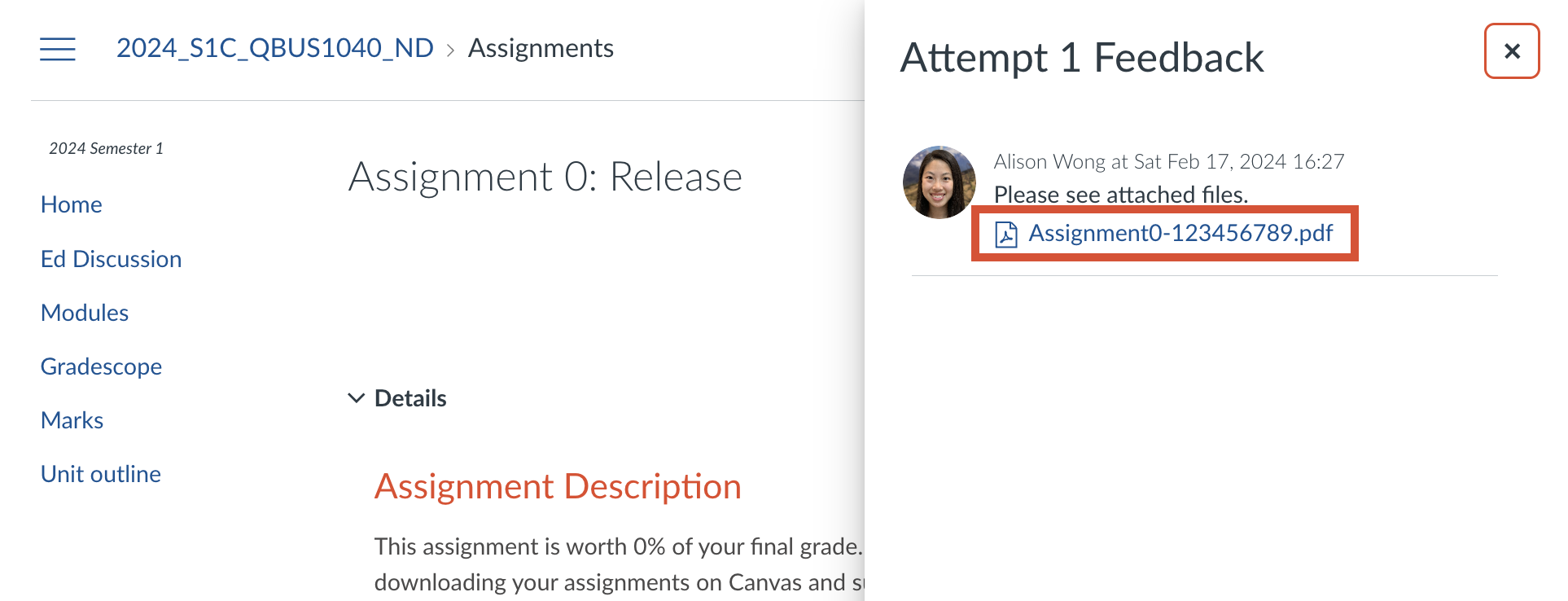
To download the PDF of your assignment, click on the View feedback button in the top right corner of this page. It should pull out a panel that looks like the figure shown below. You can then click on your assignment to download it.
YOU ARE NOT TO SHARE THE ASSIGNMENT WITH PEOPLE EXTERNAL TO THE COURSE. THIS INCLUDES POSTING IT ON PUBLIC DISCUSSION BOARDS OR SENDING IT TO PRIVATE TUTORING COMPANIES/TUTORS. DO NOT INCLUDE SCREENSHOTS OF YOUR ASSIGNMENT ON ED, BECAUSE IF THEY GET LEAKED WITH YOUR NAME YOU WILL BE BLAMED.

Extra tools: nbgrader

nbgrader overview

Overview

  • Can be used to autograde Jupyter notebooks.
    • Useful when packages aren’t supported by ed or require complicated setup (licenses, etc.)
  • Can generate feedback files for students.
    • Combine with canvasapi to return back to students.
  • Documentation here
  • Designed to work with a Jupyter server, but in practice, you can use nbgrader to create Jupyter notebooks with blank cells for students to fill in.
    • Once students submit their files, you can batch download them from Canvas and grade them at a later date and generate feedback files.

Extra tools: copydetect

Overview

  • Issue: Tools such as Turnitin do not detect code similarity well.
    • Rely on checking text, not code structure
    • If we rely on ed, code similarity is easy to detect, but for courses where code is submitted as script files, this is not easily available.
  • Solution: We can use copydetect.
    • Based on similarity detection tools used in MOSS (Measure Of Software Similarity)
    • Does not check if a student copied code from the internet (plagarism), but checks similar submissions
pip install copydetect

Similarity detection via ed


Using copydetect

  • First ensure that you just have raw code.
    • If students submit Jupyter notebooks, you will need to extract out the code:
import os
import json

directory = ''
out_dir = ''

if not os.path.exists(out_dir):
    os.makedirs(out_dir)

for file in os.listdir(directory):
    data = json.load(open(f'{check}/{file}', 'r'))
    with open(f'out_dir/{'.'.join(file.split(".")[:-1])}.py', 'w') as outfile:
        for cell in data['cells']:
            if cell['cell_type'] == 'code':
                for line in cell['source']:
                    outfile.write(line)
                outfile.write('\n')

Using copydetect

  • copydetect can be used from the command line, but you can also import the Python package and run it from a script
  • Can export a report that is similar to ed
from copydetect import CopyDetector
detector = CopyDetector(test_dirs=['submissions'], display_t=.7) # display_t threshold
detector.run()
detector.generate_html_report()

Using copydetect: report

Extra tools: LaTeX exam template

LaTeX exam template

See here.

Thank you!